Translate audio
Upload a recording and ChatCut writes down what was said, then translates it. Check both languages side by side, and export text, subtitles or a new voice track.
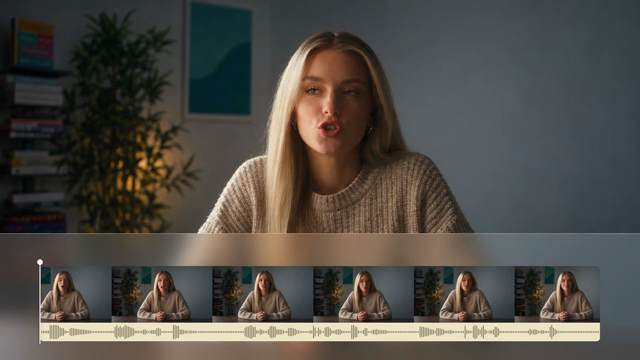
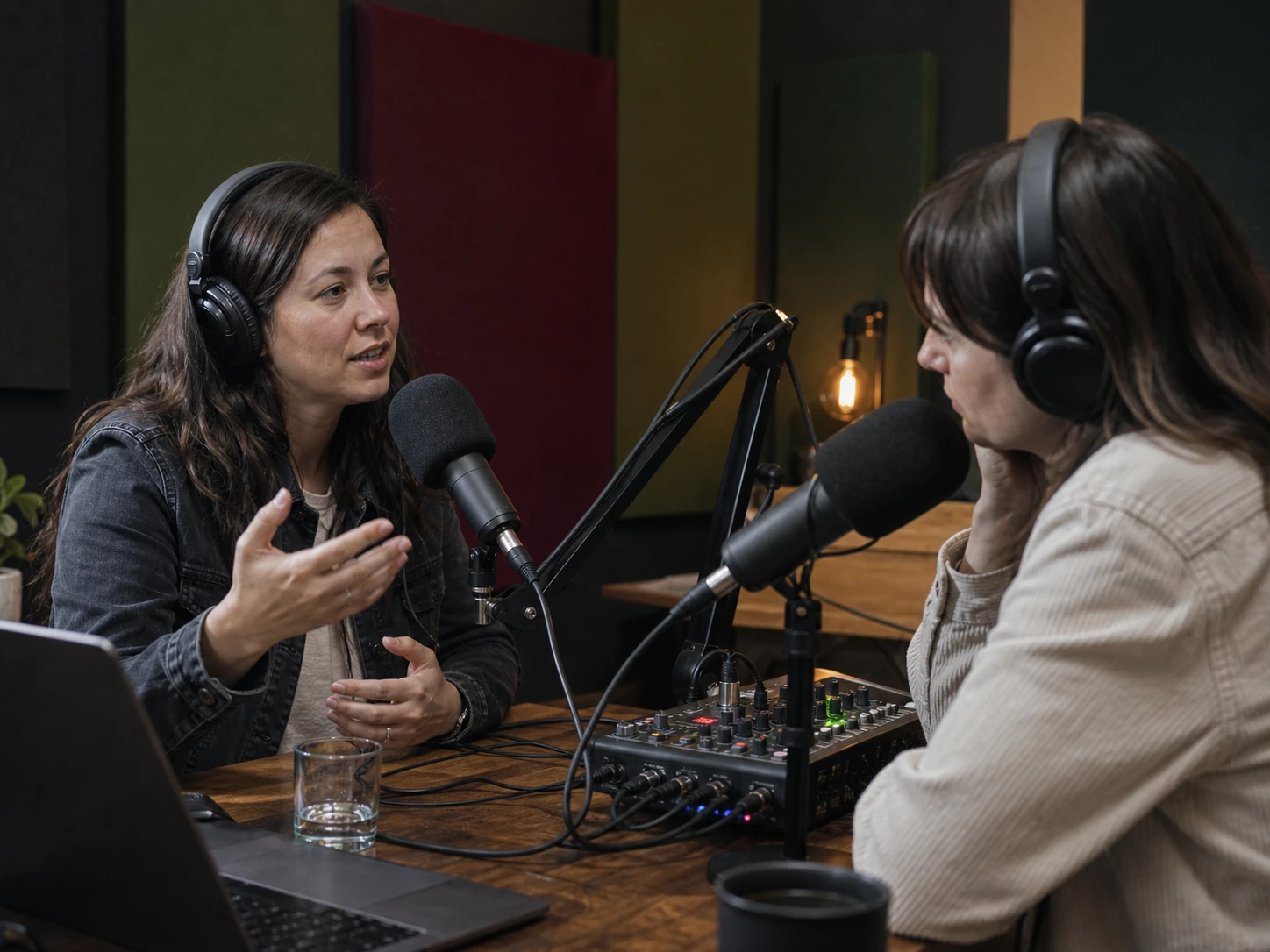 podcast-clip.mp3English → Spanish · 0:15
0:00 I think it's self realization. Creo que es autorrealización.
0:01 So I'm constantly aware of my habits, I'm constantly aware of my mental thoughts. I'm constantly aware of people that I hang out with. And in that, you kind of develop an awareness for the world. It's not an intuitive awareness, it's a Estoy constantemente consciente de mis hábitos, de mis pensamientos, de la gente con la que salgo. Y así desarrollas una conciencia del mundo. No es una conciencia intuitiva, es una
0:14 proactive awareness. conciencia proactiva.
1
00:00:00,240 --> 00:00:01,360
Creo que es autorrealización.

2
00:00:01,680 --> 00:00:13,760
Estoy constantemente consciente de mis hábitos, de mis pensamientos, de la gente con la que salgo. Y así desarrollas una conciencia del mundo. No es una conciencia intuitiva, es una

3
00:00:14,080 --> 00:00:15,360
conciencia proactiva.
Real output: transcribed and translated in ChatCut, not edited.







Trusted by 400,000+ creators
How it works
How to translate audio
- 01
Add your recording
Pick the file on this page, choose the language to translate into and what you want back, then open ChatCut and sign in free.
- 02
Check the transcript, then translate
Add the recording in ChatCut. It's transcribed in its own language; fix names or terms, then translate the captions into your language.
- 03
Export or voice it
Export the translation from Export → Subtitles as SRT or TXT, or ask the Agent for a translated voice track and review it before you use it.
Why ChatCut
Why translate audio in ChatCut
-
Read what was said before you translate it
ChatCut transcribes the recording in its own language first, so you can fix a name or a term in the original before it is carried into the translation. Transcription uses no credits.
-
Both languages side by side
The translation becomes its own caption track next to the original, timed to the speech. Edit either one without changing the other, as the transcript and captions guide explains.
-
Text, subtitles or a voice
Export the translation as plain text (TXT) or timed subtitles (SRT), or ask the Agent to read it with a library voice as a new audio track.
-
Keep going in an editor
The recording, the transcript and the translation stay in one project, so you can cut the audio, add it to a video, or dub a video from the same words.
Tips
Getting a translation you can trust
Machine translation is only as good as the transcript it starts from. These are the checks that matter most.
-
Fix the original first
Correct misheard names, product terms and numbers in the transcript before translating. A wrong word in the source becomes a wrong word in every language.
-
Read the two side by side
Compare each translated line with its original. Short sentences translate more reliably than long ones that run across a breath or a pause.
-
Choose text, subtitles or voice
TXT is for reading and quoting, SRT keeps the timing for a video player or upload, and a voice track replaces the speech. Each comes from the same translation.
-
Keep the sound clean
Background music and crosstalk make the transcript worse. Clean up the speech first if the recording is noisy; the speech cleanup guide shows how.
Use cases
What people translate audio for
-
An interview in another language
Translate a recorded interview into English so you can quote it, then keep the original next to the translation for checking.
Transcribe audio to text -
Subtitles for a podcast clip
Turn a podcast clip into translated SRT subtitles for a video post, with the timing taken from the speech.
Translate subtitles -
A lesson or a voice memo for someone else
Translate a recorded lesson, a voice note or a meeting into the listener's language as text they can read.
-
Dubbing a video
When the recording is part of a video, translate the speech and replace the voice in the same project.
Dub a video with AI
Keep editing
After the translation
Put the translated subtitles on a video with the subtitle generator, make a voiceover from the translated text, or turn the original into a transcript.
- Conversational editing
- Text-based editing
- Auto-captions
- Motion graphics
- AI voiceover
- Generate clips
- Noise removal
- Multi-track timeline
-
You Can Now Edit Videos with Grok Bot
Edit with Grok Bot -
How to Make 3× the Content With AI (No Editing Experience)
Turn long videos into shorts -
I Turned One Product Photo Into a Full Ad With ChatGPT
Product ads skill -
How to Create Insane Motion Graphics with Astra 6
AI motion graphics
Skills
Hundreds of skills for any video
100+ Skills. No experience needed. Start in one click.

FAQ
Translate audio FAQ
How do I translate an audio file?
Add the recording to ChatCut, let it transcribe the speech in its own language, check the transcript, then translate the captions into another language. Export the translation as TXT or SRT, or ask for a translated voice track.
Is it free to translate audio?
Transcription and exporting subtitles use no credits. The documentation does not give a separate price for translating captions, and Agent messages and voice generation use credits, so check the cost in ChatCut before you translate. See the credits policy.
Which languages can I translate into?
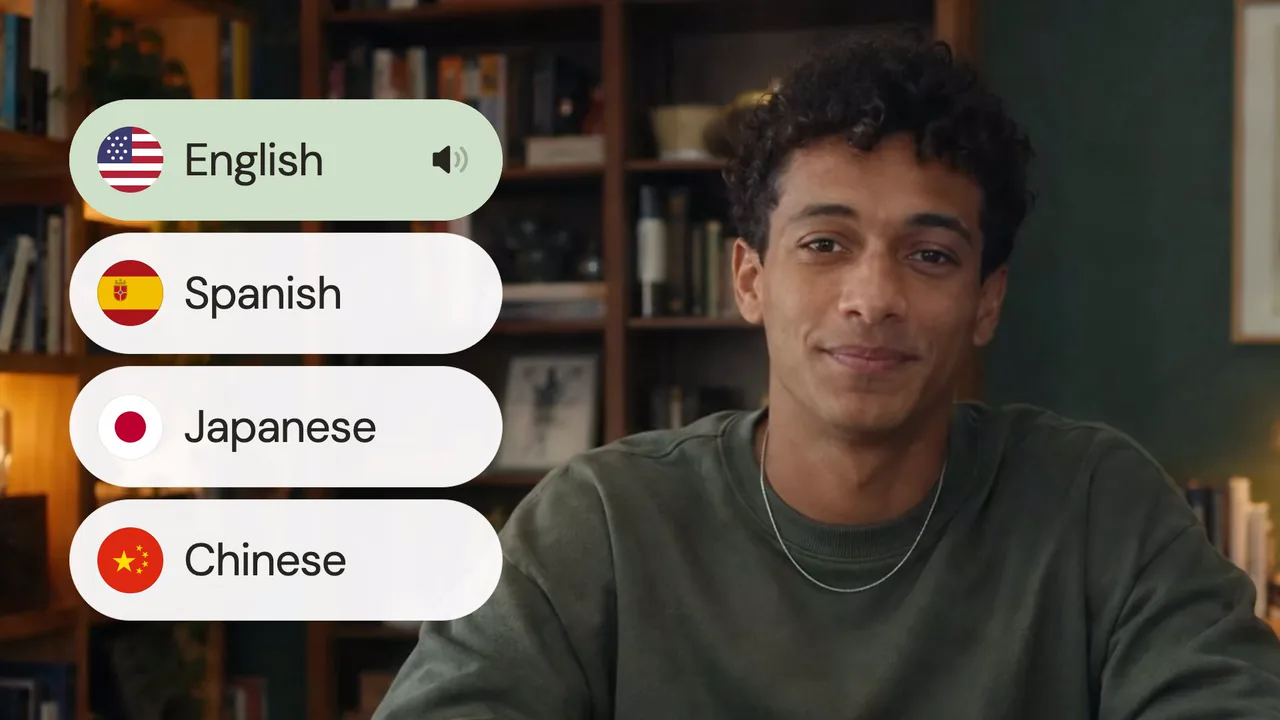
The Translate captions menu offers English, Chinese (Simplified), Spanish, French, German, Japanese, Korean and Portuguese. Transcription detects the spoken language of the recording automatically.
Can I translate audio to English?
Yes. Transcribe the recording in its own language, then choose English when you translate the captions. Check names and numbers against the original before exporting.
Which audio files can I upload?
Common audio such as MP3, WAV, AAC (M4A), FLAC and OGG, or a video with speech. If a file won't open, convert it with the audio converter first.
Can I get the translation as subtitles?
Yes. The translation is a caption track with timing, and Export → Subtitles saves it as SRT or plain-text TXT. The export follows whichever caption or translation track is active.
Can the translation be spoken in a new voice?
Yes. Ask the Agent to read the translated text with a library voice as a new audio track. Speaking it in the original speaker's cloned voice needs a paid plan, and generation uses credits.
Can I edit the translation?
Yes. Edit the translated captions directly; changes to the original keep your edited translation, and editing the translation leaves the original unchanged.
From the blog
Guides for this task
- How to Translate a Video: Subtitles, Dubbing or Lip SyncHow to translate a video with subtitles, AI dubbing or lip sync: which to choose, step-by-step instructions, and what to check before you publish.Read the guide →
- Can Google Translate a Video? What Works in 2026Can Google Translate a video? Not as a file. See what Google Translate, Chrome Live Translate and YouTube auto-translate can do, and when to dub instead.Read the guide →
Related
More translation and transcription tools
All AI apps
Edit video
- Add image to video
- Add Motion Blur to Video
- Add music to video
- Add text to video
- AI clip maker
- AI Eye Contact
- AI rotoscoping
- Auto reframe video
- Beauty filter for video
- Camera tracking
- Color grading
- Frame interpolation
- Green screen video
- Makeup filter for video
- Remove Flicker from Video
- Slideshow maker
- Slim face video editor
- Teeth whitening video
- Video body editor
- Video eye color changer
- Video Speed Ramp Editor
- Video stabilizer
Audio & voice
Record
Captions, text & translation
AI video & images
- AI animation generator
- AI avatar generator
- AI character swap
- AI Christmas photo
- AI clothes changer
- AI commercial generator
- AI dance generator
- AI headshot generator
- AI influencer generator
- AI movie maker
- AI photoshoot
- AI podcast generator
- AI poster generator
- AI product photography
- AI rap generator
- AI tattoo generator
- AI try-on video
- AI UGC video generator
- AI virtual staging
- App promo video maker
- Audio visualizer
- Billboard mockup video
- Blur background photo
- Change photo background
- Christmas card maker
- Claymation video maker
- Colorize photo
- Face swap video
- Hair color changer
- Hairstyle try on
- Image to video
- Lip sync
- Logo animation
- Motion control AI
- Personalized Santa video
- Photo restoration
- Pixel art animation
- Remove object from video
- Remove people from photos
- Remove text from video
- Replace video background
- Script to video AI
- Sharpen image
- Text animation generator
- Text to video
- Thumbnail maker
- Training video maker
- Unblur image
- Unboxing video maker
- Video background remover
- Video background remover
- Video effects
- Video summarizer
- Vocal remover
- Whiteboard animation maker
All free tools
Convert & compress
Edit video
Audio & voice
Record
Captions, text & translation